Archive

Archive for the ‘technology’ Category

Ubuntu: Adequate OCR for free on Linux

July 18th, 2010 ryan No comments

Even though I have mostly switched from Windows to Linux, I do have to emulate Windows for a few things just because the software for Linux either isn’t very good, doesn’t work, or in one case I haven’t learned it (R rather than SPSS).  One of the reasons I would run Windows over Linux was for “optical character recognition” or OCR.  This is what the process is called for converting scanned text into actual text.  On Windows there are a number of good, relatively cheap software packages that do this.  The one I regularly used was Omnipage, which is really good.  I’ve looked for open source Linux alternatives and would even be willing to pay for one that wasn’t too expensive (i.e., less than $100), but have had no luck with finding something in my price range that works.  However, with a recent development in Google Documents, it’s possible to bypass standalone OCR software completely and simply allow Google to convert your scanned documents into text for you.

As of June 21st, you can upload scanned files (e.g., jpg, pdf) to Google Docs and it will run it through OCR (directions here).  The character recognition is mediocre compared to Omnipage, but it works fairly well for simple text.  It doesn’t deskew text before converting it, so if your scanned text is skewed at all, it will have a hard time converting it.  Also, the Google Docs OCR software doesn’t retain formatting at all.  But it works.  And it’s adequate for what I do (mostly scanning paragraphs from books to help with my book reviews).  However, one thing that is not mentioned with this free service is that it is limited to scans that are 10 pages in length or shorter.  I found this out the hard way by uploading a scan that was about 30 pages and realizing it wasn’t recognizing 20 pages of the document.  So, if you need lots of long documents converted, you’re probably still better off using some other software.  But if you just need a few pages of text converted, Google Docs will do it for you and do it fairly well.

So, how do you get all of this to work on Linux?  Assuming you already have a scanner (that would be the only cost, aside from your computer, of course), you can use the built in scanning software “Simple Scan” (as of 10.04) to scan your document.  Select “text” scan as you don’t need color.  Simple Scan is quite easy to use and allows for quick and easy cropping, which I would recommend (you have to do this in Omnipage as well, so it’s not any more time consuming).  Once you’ve scanned and cropped your text selection, save it as a PDF.  Then follow the directions here on how to upload it to Google Docs and tell Google Docs to convert it to OCR.  Et voila, you have OCR on Linux.

If you do happen to have a longer document you need converted, you can easily break it into 10 page chunks using another piece of free software, pdfSam, which automates breaking the PDF into 10 page chunks.  You can then upload all the pieces of the document to Google Docs simultaneously.  So long as they are less than 10 pages long, each will be converted in turn.

Categories: technology Tags: , , ,

Android: An e-book reader that copies, pastes, and highlights text

July 13th, 2010 ryan 1 comment

As my regular readers know, Debi and I recently bought new cellphones that run the Android operating system. For about three years before that, we were running an old Windows Mobile OS (I think version 5). On our old phones, I had installed an ebook reader that allowed me to copy and paste text from the books I was reading (no DRM, of course) to a word file. The ebooks that would allow that were ebooks I had created myself. This was a necessary feature for me because of how I read books – I copy and paste or highlight text then use that text when I’m done reading the book to write the book review. So, imagine my disappointment when the two most highly rated ebook reading applications in the Android store – Aldiko and Wordplayer – turned out not to have the ability to copy, paste, or highlight an ebook. Wordplayer had the ability to add a bookmark, but that’s as close as I could get. After some lengthy searching, I ended up right back at the application I used to use on my old Windows Mobile phone – eReader.  It turns out the free ebook reading app from eReader.com does have the ability to copy, paste, and highlight text in non-DRM books.  So, here are instructions on how to put an ebook on an Android phone in eReader.

  1. Create an account at eReader.com.  This is free and easy to do.
  2. On your Android phone, click on “Settings” then “Applications”.  At the top of the list should be a checkbox for “Unknown sources: Allow installation of non-Market applications.”  Select that checkbox.  This is necessary because the eReader software is not in the Android Marketplace but downloadable directly from their website.
  3. Using your phone’s browser, go to: ereader.com/android
  4. On that page you’ll see a link to download the software.  Select it.  The software will download.
  5. Once it’s complete, select it and it will try to install and ask for your permission to install.  Give your permission and it should install.
  6. You can now open the application on your phone, but in order to get your custom ebook into the eReader library you need to do a few more things.
  7. Before you can import your ebook, you need to make sure it is in the PDB format (not sure why ebook producers haven’t decided on a universal format at this point, but eReader requires PDB format).
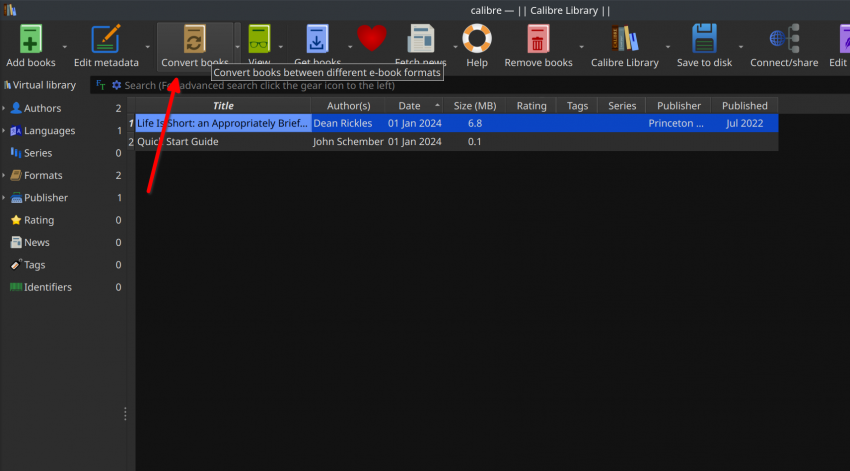
  8. Luckily, there is an amazing piece of software I’ve recently discovered that allows you to convert pretty much any document into any ebook format: Calibre.  I’m really not trying to advertise for either eReader.com or Calibre, but if I were going to advertise for one of them, it would definitely be Calibre.  It’s free and amazing.  It’s a little tricky to use, but basically you can import any ebook format or document (in Word, RTF, PDF, etc.) and convert it into any other ebook format.  It’s really amazing.
  9. So, import your document into Calibre and convert it into the PDB format. (I’m not going to provide directions on how to do this as you can see how on the Calibre website.)
  10. You’ll then need to export your document to a specific location in the PDB format: right-click the book and select “Save to disk” -> “Save single format to disk” -> “PDB”
  11. Calibre will allow you to choose your location.  Once you do, it will export the book to that location.
  12. Now, go back to eReader.com and open your account.  Click on the link at the upper right for “Bookshelf”.
  13. Inside your Bookshelf you’ll see a little box at the upper right that says “Personal Content for iPhone and iPod touch”.  Click on it.  (FYI, this works on the Android, so the “iPhone and iPod touch” line is irrelevant.)
  14. On the new page it will give you directions for uploading a PDB file.  You just have to choose the file that you just exported from Calibre and upload it.  It takes a few minutes, but once it’s uploaded, it is added to your list of files. (This information came from this page.)
  15. Now, how to get these files onto your Android device?  Open up the eReader application.  Select “Menu” then “Online Bookshelf.”  You should see your newly uploaded book on your Online Bookshelf.  Select it and it will download.  Et voila, you now have a custom made ebook on your Android device that you can highlight and copy and paste text from.

For the average user, of course, you’re probably just going to buy books from various online marketplaces, like Amazon (using the Kindle app) or from eReader.com.  So, the above will likely be unnecessary.  But given the specific requirement of someone creating their own ebook that can be annotated, this is the way to do it on Android devices.

Categories: technology Tags: , ,

Google Chrome doesn’t work with YouTube?

June 30th, 2010 ryan No comments

I just received an email from YouTube inviting me to apply for “revenue sharing” for one of the videos I posted on that has quite a few views (about 15,000).  I followed the link to apply for revenue sharing and clicked through as much of the process as I could.  But I got to one screen that wouldn’t let me continue.  Basically, you need to select a radio button that will trigger another box to pop up for you to enter additional information (probably javascript).  I clicked on the radio button and nothing happened.  I figured it was a browser issue (despite the fact that I was using Google Chrome), so I fired up Firefox and tried the same application process with Firefox.  Still no luck.  My last recourse for browsers is always Internet Explorer.  Since I run Linux, I had to start up Virtualbox and then launch Internet Explorer in a virtual machine.  The result – it worked.  You can see the side-by-side photos of the two browsers here:

Google Chrome is on the left; Internet Explorer is on the right (in Virtualbox)

Why is this funny?  Well, Google owns YouTube.  Google makes Google Chrome.  Ergo, one of Google’s websites doesn’t work with Google’s browser.  Instead, you have to use Internet Explorer, from Microsoft.  Ooops!

Categories: technology Tags:

Ubuntu: xbindkeys to replace Firefox’s clippings extension

June 4th, 2010 ryan No comments

I’ve been a loyal user of Firefox for years and plan to still use it as my secondary browser (and will use it regularly for Zotero).  But Google’s new browser, Chrome, has really impressed me and I’m going to start using it as my primary browser for email, surfing the web, and every day online activities.  Why is it better?  It’s faster, does a better job rendering flash on Linux, doesn’t require restarts to install extensions, and isolates tabs, so if one crashes it doesn’t kill all of your other tabs.  In short, Chrome has become a better browser than Firefox for everyday browsing.

I had held off switching to Chrome for several months because I was hoping someone would create a Chrome extension similar to clippings for Firefox.  I’m still hoping someone will, but I figured out a way to work around it on Ubuntu Linux.  It’s not for the faint-of-heart or novice computer user, but it does work, and works quite well.  Basically, what I’ve done is installed some software that allows me to paste text into any window, unlike clippings, which only let me paste text into Firefox.

Here’s how you do it:

Ubuntu comes with some cool keyboard shortcuts built in, and includes the ability to customize a lot of those shortcuts.  But it doesn’t come with the ability to paste text as a keyboard shortcut with the default install (learned this here).  In order to do that, you need to install a program called “xbindkeys.”  While you’re at it, you may as well install the GUI for setting the keybindings “xbindkeys-config” and the program you’ll use to generate the text “xvkbd“.  You can install them all at once from the terminal (or find them in the Synaptic Package Manager and install them there):

$  sudo apt-get install xbindkeys xbindkeys-config xvkbd

Once you’ve installed “xbindkeys,” the first thing you need to do is create a default configuration file for it from the terminal:

$  xbindkeys –defaults > /home/your-user-name/.xbindkeysrc

Once that’s done, go ahead and open the xbindkeys GUI by typing the following at the terminal:

$  xbindkeys-config

This will pull up the xbindkeys GUI:

In here, you can create the key bindings to generate the text you want.  This involves 6 steps.

1) At the bottom of the GUI, select “New”:

A new line in the list of keybindings will appear.  Select it.

2) At the top right, choose a name for the keybinding and put it in the field labeled “Name:”

I don’t know that the name you choose here is particularly important, but you should probably make it something you’ll recognize.

3) Set the key binding.  the xbindkeys GUI includes the ability to capture key combinations.  All you have to do is press the “Get Key” button, wait a second for a small window to pop up, then press the desired key combination (e.g., Control+Mod2+Mod4+1).  The GUI should capture everything for you correctly.  The key combination will be coded into the language xbindkeys understands and will be put in the “Key:” field (e.g., Control+Mod2+Mod4+1 | m:Ox54 + c:10).  What all of the code in the “Key:” field means, I’m not sure, but some of it is explained in the actual configuration file (which you created above; it’s located here: /home/your-user-name/.xbindkeysrc).

4) You then need to tell xbindkeys what to do when you press the key combination you just set up (this is called the “Action”).  In order to paste text into a window, you have to actually call up a different program, which is why we installed it earlier.  That program is xvkbd, an on-screen keyboard program.  You won’t see the keyboard when you press the key combination, but it does generate the text for you.  Here’s the command you use in the “Action:” field to generate text:

xvkbd -xsendevent -text “your text here

The first part “xvkbd” opens the xvkbd program.  The second part “-xsendevent” tells it to send an event to the X window. The third part “-text” tells it what type of event – text.

A couple of notes on the text you can include using this command are in order.  First, you can put pretty much anything you want inside the quotes, except additional quotes, which the program doesn’t seem to recognize are quotes inside the quotes.  So, don’t try quotes inside quotes.  You can also include things like “Return” and “Tab.”  I couldn’t figure out how to do that initially, which is why I ended up writing this tutorial.  What I wanted to include in the text I was pasting was the text I usually include in my email signature:

Best,

Ryan

I was able to include the text, but couldn’t figure out how to include the line break.  So, what I was initially getting when I pressed my key combination was:

Best,Ryan

I initially thought, erroneously, that the command for “Return” would be included in xbindkeys list of commands.  Nope.  The command for “Return” is part of xvkbd.  I eventually found it on that software’s website: \r.  So, if you want to create something like an email signature with a line break, here’s how it would look:

xvkbd -xsendevent -text “Best,\r\rRyan”

Note I’ve included two Return commands (i.e., “\r\r”) as one will just return me to the next line.  I needed 2 for a blank line between “Best,” and “Ryan.”

5) You’re not quite done at this point.  I found the GUI for xbindkeys to be a bit buggy.  Before you do anything else, you should hit the buttons “Apply” and “Save & Apply & Exit”:

This will close the program, but it will also make sure that everything you just typed in will be saved in the configuration file.  I have 5 different keyboard bindings for text I use regularly, 3 email signatures and 2 other text snippets.  I created the first email signature, then started on the second and the GUI crashed, losing all my work.  So, just hit the “Apply” and “Save & Apply & Exit” button after every keyboard binding you create just to be safe.

6) Test it.  Open up a file or browser and try your keyboard combinations.  If the text is pasted in – voila, you’re done.  If not, well, you did something wrong or, well, who knows.  The nice thing about this approach is that it is browser agnostic – it will paste your text into any browser or any other text input box for that matter.

Notes:

There are a couple of additional things you should do with xbindkeys before you’re done.  First, a nifty keybinding that is included in the default configuration file is “CONTROL+SHIFT+q”, which opens up a list of all of your current keybindings:

This isn’t all that important to know, but it is a nice little feature.

You should also know that you can edit your configuration file by hand, though doing so is a bit tricky as the code for the key combinations isn’t all that intuitive.  To do so, use the following command at the terminal:

$ gedit /home/your-user-name/.xbindkeysrc

Finally, once you’ve gotten everything working, if you want to make sure xbindkeys starts when you boot your computer, add it to the Startup Applications: “System -> Preferences -> Startup Applications”

Categories: technology Tags: ,

HTC Droid Incredible – additional thoughts

May 31st, 2010 ryan 3 comments

I posted before about our new phones – HTC Droid Incredibles.  Perhaps I’m just trying to justify the purchase to myself, but I’ve figured out a few new tricks with the phone that are worth mentioning.

Perhaps the coolest feature I’ve found recently, which really makes this a smart phone, is what it does when you connect it via the USB cable to a computer.  By default, the phone just starts charging.  But it also includes in the message bar a note saying that you can change the mode.  What does that mean, you ask?  Well, it gives you several optional things you can do.  One, of course, is just to charge the phone via USB.  Another is to sync your contacts and calendar (I’m guessing that is probably Windows only, but I don’t know – I use the Gmail contacts and Google Calendar, which are always synced, so I didn’t bother).

Another option is to have your phone appear as an external hard drive to your computer.  That’s the option I went with as I wanted to drag some music onto my phone.  I was thinking it was going to be a pain in the butt to get the music on – nope.  Once I clicked that option, Ubuntu (my Linux operating system), instantly recognized two external hard drives – the built in 8gb of memory for the phone and the 16gb of additional memory I have since added.  I then created a folder on the SD card called “Music” and drug about 4gb of music into the folder.  When I finished, I opened up the “Music” app and it started scanning my memory for music.  It took a bit of time, but it eventually indexed all 4gb of music I added (without me having to tell it where to find it), and organized it all by Artist/Genre/Album/Song, etc.  Slick!

Another option that is available when you plug the phone into your computer is to tether your computer to your phone.  For those not in the know, what that means is that you can have your computer use your 3G wireless internet access through your phone.  So, say, you’re in the airport and you want to do some surfing but you’re not in a cool airport like TPA (Tampa’s airport rocks – free wi-fi) and you don’t want to shell out $XX.XX for 10 minutes of internet browsing.  No problem.  Plug your phone into your computer via the USB cable, select the tether option, and surf away.  I haven’t tried it, but my guess is that it would work just fine.  How fracking cool is that!?!  Eat that iPhone users!

Other stuff I’ve tried on the phone lately…  I’ve taken a few pictures.  The picture quality is okay, not great, but uploading and sharing the photos is a snap.  Click on any photo and say “share” and it gives you a list of options, including emailing it to yourself.  The same goes for videos.  The last few videos I’ve posted have all been taken on my HTC Droid Incredible as it was the closest video camera when I saw Toren doing something cool.  The best part about sharing the videos and pictures: you can choose multiple videos/pics and share them at the same time.  I did have some hiccups trying to upload multiple videos to youtube – it stopped after each video and needed me to re-prompt it.  But they all still uploaded fine.

I’m also not sure if I’ve raved enough about the Google Navigation feature and its tie-in to Google Maps.  Search for something in Google Maps, find it, click on it and then you have every option you could want: contact information, directions, navigation, web pages, etc.  And the transition from maps to navigation is seamless.

Finally, the multi-tasking feature is really impressive.  I can listen to podcasts while letting Google Navigation give me directions.  The only problem: Once the Google Navigation voice kicks in to give me directions, it doesn’t pause the music/podcast, it just mutes the other and takes precedent.  That it takes precedent is great, but adding a quick pause so I don’t miss anything in my other audio program would be a nice feature.

Okay, enough raving about my new phone…  I’ll probably have more to say on this, but that’s plenty for now.

Categories: technology Tags:

Switch to our mobile site