Archive

Posts Tagged ‘Linux’

LinuxMint: Automount Server Share

October 16th, 2011 No comments
Number of Views: 36

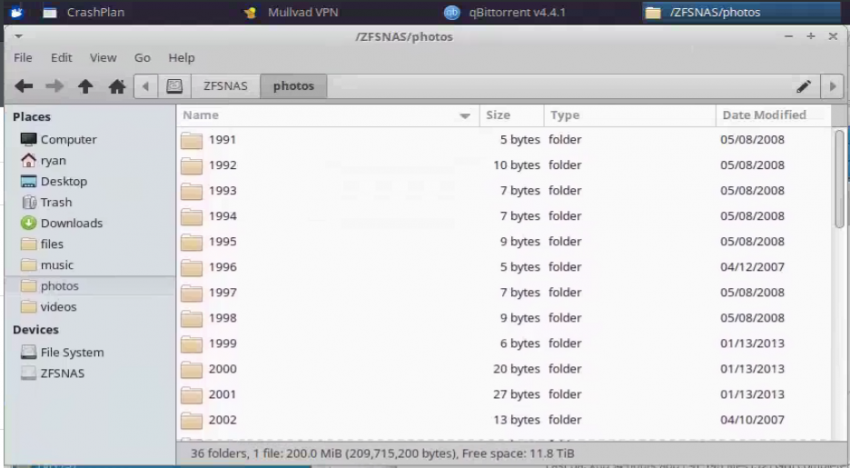
While I’m still not 100% sure how I got my file server to share all the files across the network (whatever I did, it worked; when the server dies, I’ll figure it out and post it here).  Regardless, I recently reformatted my desktop and had to set up the file server share to automount on my desktop for easy access to the files (I store all my music, videos, and lots of other files on the file server).  Here are the steps I took to set up my automounting file share on my LinuxMint desktop (courtesy of the ubuntu wiki).

1) First you need to install two packages (not sure which actually does the mounting, so I just installed them both: cifs-utils and smbfs. You can install these from the terminal or using synaptic.  Here’s how you would do it from the terminal:

sudo apt-get install cifs-utils smbfs

2) Once those are installed, you need to create a mount point for your share.  The easiest way to do this is from the terminal as it requires root privileges.  The share, which, in my case, is called “fileshare” is mounted in the “media” directory, so you use the following:

sudo mkdir /media/fileserver

3) Next you need to edit the fstab file.  This is a file that tells the operating system which drives should be mounted on startup.  To edit it, enter the following at the terminal:

sudo gedit /etc/fstab

4) The text editor will pop up with your fstab file open for editing.  You need to add a line to the fstab file that tells the operating system what to mount on startup, where to mount it, and what permissions to use.  Here is the line I used

//fileserver/server-share  /media/fileserver  cifs  guest,uid=1000,iocharset=utf8,codepage=unicode,unicode  0  0

What this tells the operating system is that I want to mount a network share “//fileserver/server-share/” into the folder “/media/fileserver”.  I do this with the software package “cifs.”  Since I set up my fileserver to not require permissions to access the files, I am accessing the fileserver as “guest.”  The “uid” is my user id.  The remaining information indicates what follows I can read and write across the network share.  Save the fstab file and close it.

5) The last step is to go ahead and mount the share.  This is also done from the terminal using the following command:

sudo mount -a

This tells the operating system to remount everything in your fstab file.  Your file share should now show up as a drive on your desktop and you should be able to read and write to it directly as if it were a drive on your computer.

Categories: technology Tags: , , ,

LinuxMint: Keyboard Shortcuts to Move Windows Between Monitors

October 16th, 2011 No comments
Number of Views: 21

If you don’t have multiple monitors hooked up to your desktop computer, you’re really missing out.  Having dual monitors is a delight when it comes to being able to see more than one window and work even faster.  And to make the experience even more enjoyable, Ubuntu variants of Linux, including LinuxMint, my new Linux distribution of choice, come pre-installed with CompizConfig Settings Manager, which has a nice windows management utility built in that allows you to use keyboard shortcuts to move windows between monitors.  So, for instance, let’s say you’ve got your browser up on the left monitor, but you want to move it to the right monitor so you can have it open at the same time as you work on a spreadsheet.  You could shrink the browser window then drag it to the other monitor.  But that would require several several clicks and dragging your mouse.  Wouldn’t it be nice if you could simply hit a keyboard combination that moved your entire window from one monitor to the other, while still maximized?  The “Put” utility in CompizConfig allows you to do this.  Here’s how:

1) Open CompizConfig Settings Manager (it’s pre-installed in LinuxMint).  If you’re running Ubuntu, you may have to install it using the software center or synaptic:

opening CompizConfig Settings Manager in LinuxMint (click to enlarge)

2) With the settings manager open, scroll down to the section labeled “Window Management.”  You should see “Put” as an option.  Select the box next to it, then click on “Put” to enter the settings:

find "Put" in the CompizConfig Settings Manager window (click to enlarge)

3) Inside the “Put” submenu you’ll see several options.  The one you want to move windows between monitors is “Put within viewport,” which is the fourth from the top.  Select the + sign next to it to see the options.  While you can “Put” your windows in lots of locations, I primarily just use two: “Put Left” and “Put Right”.

the "Put" settings submenu (click to enlarge)

(In the above image I had already set up my key combinations.)

4) To set up a key combination to use the “Put” utility, simply click on the button labeled “Disabled” across from the relevant command that shows a small keyboard (you can create key combinations using mice as well, which are just below the keyboards).  That brings up this option:

click "enabled" to tell CompizConfig to use the keyboard combinations

5) Select “enabled” and you’ll see this:

set your keyboard combination here

6) Click on “Grab key combination” and another window will pop up that will detect the keyboard combination shortcut you want to use to put your windows across monitors.  I use “Alt+Super+left” for moving windows to my left monitor and “Alt+Super+right” to move windows to my right monitor (as shown in the image above).  Once you enter your keyboard combination, hit “OK” in the prompt, set up any others you want to use, and then click on “Back”.  Make sure you’ve selected the checkbox next to “Put” then close CompizConfig Settings Manager.

7) You can now try out your keyboard combination by selecting a window and using your combination to move it across monitors.  FYI, if your window is maximized, you’ll have to hit the combination twice.  When you hit it the first time, the window will move just a little bit to indicate to you that the software knows you’re trying to move the window but that the window is maximized.  Hit it again quickly and the window will jump to your other monitor and maximize itself on that monitor as well, beautifully taking into account panels and monitor size.  I show the actions in the video below:

Note: Another very useful keyboard combination utility that comes built in with CompizConfig Settings Manager is the “Grid” utility which allows you to move a window to different areas of your monitors as well.  This utility is located in the same area as the “Put” utility.  It is activated by default.  The keyboard combinations are “Ctrl+Alt+keypad numbers”.  So, for instance, to move a window to the center of a monitor, hit “Ctrl+Alt+KP5,” which is the center key in your keypad.  To move it to the right, use KP6, etc.  Grid has several levels of alignment built in, which you can see by hitting the combination repeatedly until you get the window to the size you want, as shown in the video below.

Categories: technology Tags: , , ,

Ubuntu: Adequate OCR for free on Linux

July 18th, 2010 No comments
Number of Views: 12

Even though I have mostly switched from Windows to Linux, I do have to emulate Windows for a few things just because the software for Linux either isn’t very good, doesn’t work, or in one case I haven’t learned it (R rather than SPSS).  One of the reasons I would run Windows over Linux was for “optical character recognition” or OCR.  This is what the process is called for converting scanned text into actual text.  On Windows there are a number of good, relatively cheap software packages that do this.  The one I regularly used was Omnipage, which is really good.  I’ve looked for open source Linux alternatives and would even be willing to pay for one that wasn’t too expensive (i.e., less than $100), but have had no luck with finding something in my price range that works.  However, with a recent development in Google Documents, it’s possible to bypass standalone OCR software completely and simply allow Google to convert your scanned documents into text for you.

As of June 21st, you can upload scanned files (e.g., jpg, pdf) to Google Docs and it will run it through OCR (directions here).  The character recognition is mediocre compared to Omnipage, but it works fairly well for simple text.  It doesn’t deskew text before converting it, so if your scanned text is skewed at all, it will have a hard time converting it.  Also, the Google Docs OCR software doesn’t retain formatting at all.  But it works.  And it’s adequate for what I do (mostly scanning paragraphs from books to help with my book reviews).  However, one thing that is not mentioned with this free service is that it is limited to scans that are 10 pages in length or shorter.  I found this out the hard way by uploading a scan that was about 30 pages and realizing it wasn’t recognizing 20 pages of the document.  So, if you need lots of long documents converted, you’re probably still better off using some other software.  But if you just need a few pages of text converted, Google Docs will do it for you and do it fairly well.

So, how do you get all of this to work on Linux?  Assuming you already have a scanner (that would be the only cost, aside from your computer, of course), you can use the built in scanning software “Simple Scan” (as of 10.04) to scan your document.  Select “text” scan as you don’t need color.  Simple Scan is quite easy to use and allows for quick and easy cropping, which I would recommend (you have to do this in Omnipage as well, so it’s not any more time consuming).  Once you’ve scanned and cropped your text selection, save it as a PDF.  Then follow the directions here on how to upload it to Google Docs and tell Google Docs to convert it to OCR.  Et voila, you have OCR on Linux.

If you do happen to have a longer document you need converted, you can easily break it into 10 page chunks using another piece of free software, pdfSam, which automates breaking the PDF into 10 page chunks.  You can then upload all the pieces of the document to Google Docs simultaneously.  So long as they are less than 10 pages long, each will be converted in turn.

Categories: technology Tags: , , ,

Android: An e-book reader that copies, pastes, and highlights text

July 13th, 2010 5 comments
Number of Views: 40

As my regular readers know, Debi and I recently bought new cellphones that run the Android operating system. For about three years before that, we were running an old Windows Mobile OS (I think version 5). On our old phones, I had installed an ebook reader that allowed me to copy and paste text from the books I was reading (no DRM, of course) to a word file. The ebooks that would allow that were ebooks I had created myself. This was a necessary feature for me because of how I read books – I copy and paste or highlight text then use that text when I’m done reading the book to write the book review. So, imagine my disappointment when the two most highly rated ebook reading applications in the Android store – Aldiko and Wordplayer – turned out not to have the ability to copy, paste, or highlight an ebook. Wordplayer had the ability to add a bookmark, but that’s as close as I could get. After some lengthy searching, I ended up right back at the application I used to use on my old Windows Mobile phone – eReader.  It turns out the free ebook reading app from eReader.com does have the ability to copy, paste, and highlight text in non-DRM books.  So, here are instructions on how to put an ebook on an Android phone in eReader.

  1. Create an account at eReader.com.  This is free and easy to do.
  2. On your Android phone, click on “Settings” then “Applications”.  At the top of the list should be a checkbox for “Unknown sources: Allow installation of non-Market applications.”  Select that checkbox.  This is necessary because the eReader software is not in the Android Marketplace but downloadable directly from their website.
  3. Using your phone’s browser, go to: ereader.com/android
  4. On that page you’ll see a link to download the software.  Select it.  The software will download.
  5. Once it’s complete, select it and it will try to install and ask for your permission to install.  Give your permission and it should install.
  6. You can now open the application on your phone, but in order to get your custom ebook into the eReader library you need to do a few more things.
  7. Before you can import your ebook, you need to make sure it is in the PDB format (not sure why ebook producers haven’t decided on a universal format at this point, but eReader requires PDB format).
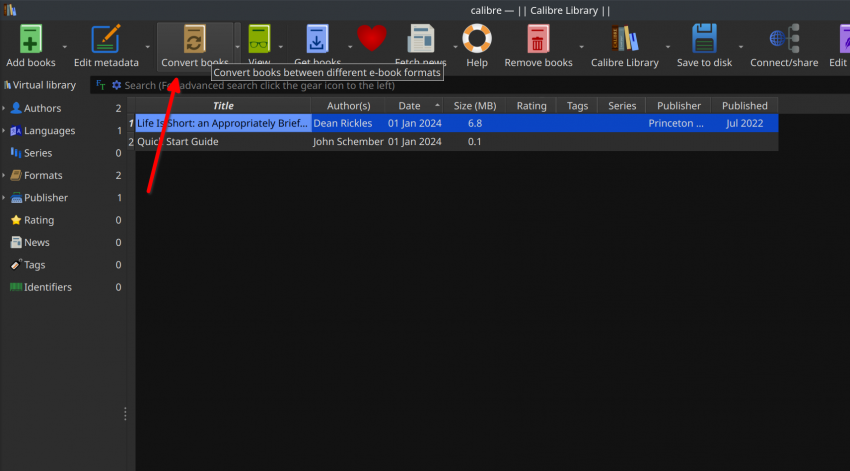
  8. Luckily, there is an amazing piece of software I’ve recently discovered that allows you to convert pretty much any document into any ebook format: Calibre.  I’m really not trying to advertise for either eReader.com or Calibre, but if I were going to advertise for one of them, it would definitely be Calibre.  It’s free and amazing.  It’s a little tricky to use, but basically you can import any ebook format or document (in Word, RTF, PDF, etc.) and convert it into any other ebook format.  It’s really amazing.
  9. So, import your document into Calibre and convert it into the PDB format. (I’m not going to provide directions on how to do this as you can see how on the Calibre website.)
  10. You’ll then need to export your document to a specific location in the PDB format: right-click the book and select “Save to disk” -> “Save single format to disk” -> “PDB”
  11. Calibre will allow you to choose your location.  Once you do, it will export the book to that location.
  12. Now, go back to eReader.com and open your account.  Click on the link at the upper right for “Bookshelf”.
  13. Inside your Bookshelf you’ll see a little box at the upper right that says “Personal Content for iPhone and iPod touch”.  Click on it.  (FYI, this works on the Android, so the “iPhone and iPod touch” line is irrelevant.)
  14. On the new page it will give you directions for uploading a PDB file.  You just have to choose the file that you just exported from Calibre and upload it.  It takes a few minutes, but once it’s uploaded, it is added to your list of files. (This information came from this page.)
  15. Now, how to get these files onto your Android device?  Open up the eReader application.  Select “Menu” then “Online Bookshelf.”  You should see your newly uploaded book on your Online Bookshelf.  Select it and it will download.  Et voila, you now have a custom made ebook on your Android device that you can highlight and copy and paste text from.

For the average user, of course, you’re probably just going to buy books from various online marketplaces, like Amazon (using the Kindle app) or from eReader.com.  So, the above will likely be unnecessary.  But given the specific requirement of someone creating their own ebook that can be annotated, this is the way to do it on Android devices.

Categories: technology Tags: , ,