The Problem:
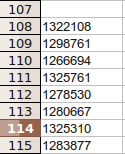
You have a spreadsheet that has a column of what you think are numbers in it. The numbers display fine in their cells, but when you try to do something with them, you find that you can’t. For example, you may want to sort them or use them as part of a calculation and it doesn’t work. Here is a screenshot illustrating that the numbers look like numbers in their cells:
If you click on one of the cells, you’ll see that the numbers actually have a hidden apostrophe in front of them, like you see in this screenshot:
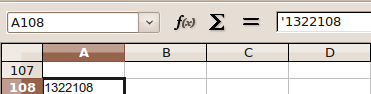
After spending some time on the internet, I finally found out what is going on. While you think those are numbers, the apostrophe is Calc’s way of saying that the numbers you see are to be treated as text, but they are in a cell that is formatted as a “number.” You can verify this by right-clicking on the cell, selecting “Format cells” and then clicking on the “Numbers” tab, as illustrated in the screenshots below:
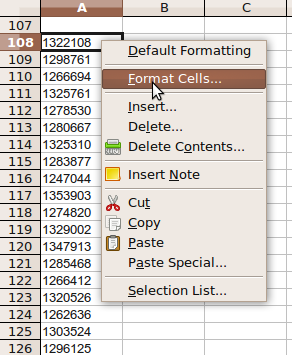
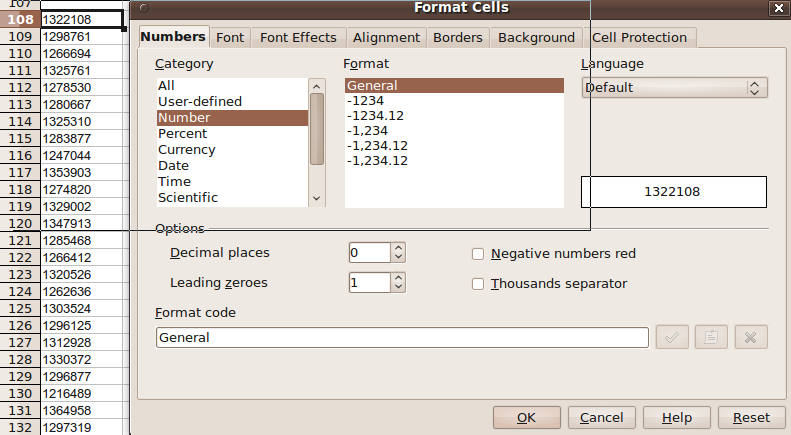
So, the spreadsheet program treats a series of numbers as text in a cell formatted as numbers. Talk about aggravating.
The Solution:
There is a solution for this. It involves a “find and replace” function. From the “Edit” menu, choose “Find & Replace.” In the “Find” box, type “^.” (i.e., carat + period). In the “Replace” box, type “&” (without the quotes, of course). But you have to do one more thing for this to work. At the bottom of the “Find & Replace” window you’ll see a button that says “More Options.” Click on it, then select the box next to “Regular Expressions.” You should now have a “Find & Replace” box that looks like this:
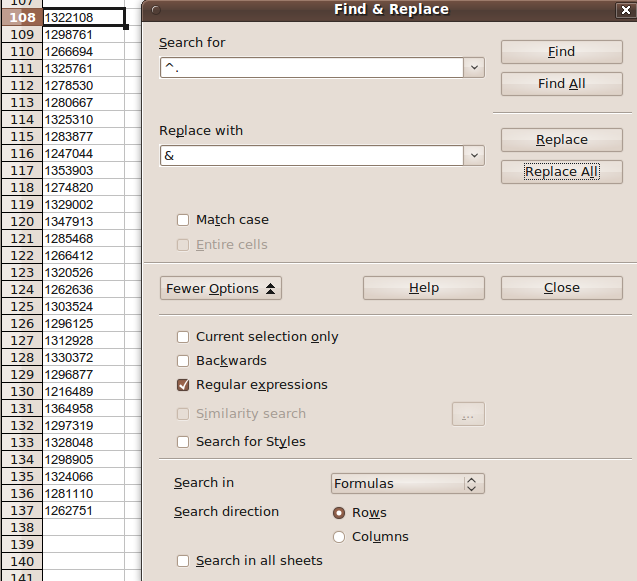
Now, hit “Replace All” and all of your apostrophes will disappear. Your series of numbers will now be seen as numbers by your spreadsheet program and will be in cells formatted as number cells. Problem solved.


Leave a Reply